Ask a launch questionnaire
Ask each student up to five questions, such as a student ID or a section, before the camera check.
The Launch Questionnaire asks each student a few questions before the exam, for example a student ID, a section or a seat number. Each exam can ask up to five questions. You see the answers next to the recording.
Add a question
Open the exam
On the Exams page, select the exam.
Open the settings
In the rail, select Exam Settings.
Open Monitoring and Launch
Select Monitoring and Launch to open the section. The Launch Questionnaire is at the bottom.
Add a question
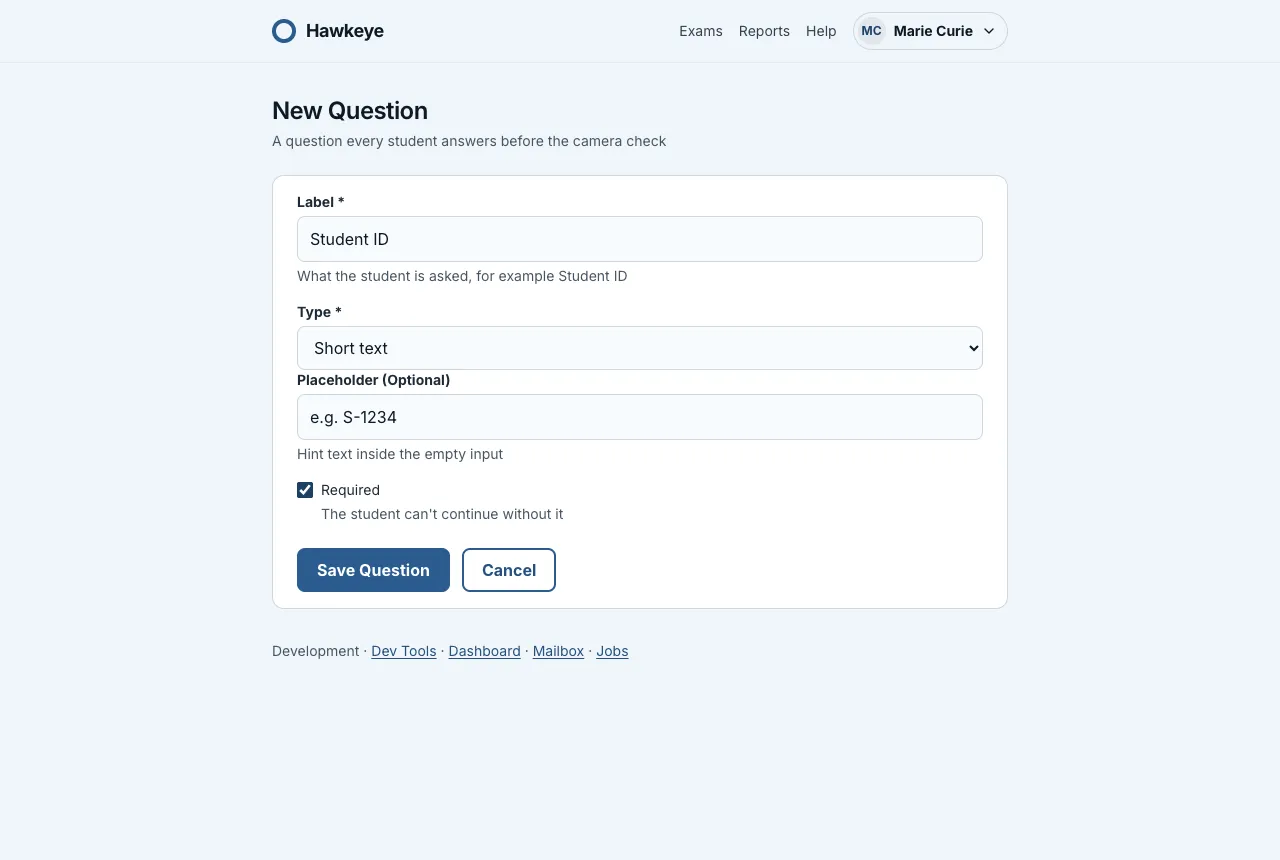
Under Launch Questionnaire, select Add a Question. The New Question form opens.
Write the question
Type the Label, for example “Student ID”. Students see this label. It can have up to 80 characters.
Choose the type
Select a Type. The form shows only the inputs that the type uses.
Make it required
Select Required if every student must answer. A student cannot continue without a required answer.
Save
Select Save Question. Hawkeye opens Exam Settings again, at the Launch Questionnaire.
Types
| Type | What the student gives |
|---|---|
| Short text | Text, up to 200 characters |
| Number | A whole number |
| Date | A date |
| Choice list | One choice from a list that you write |
For Short text and Number, you can add a Placeholder (Optional). The placeholder is a hint inside the empty input, for example “e.g. S1234567”.
For a Choice list, type the Choices, one per line. You need 2 to 10 choices. Each choice can have up to 60 characters. Two choices cannot be the same.
Hawkeye checks every answer against its type. For example, it refuses letters in a Number field.
Change the order
The questions appear to students in the order of the Launch Questionnaire list. Use Move Up and Move Down to change the order. The first question also shows as a column in the Sessions table on the exam page.
Edit or delete a question
Select Edit or Delete next to the question.
What students see
An exam with questions adds a Your Details step to the pre-check, before the camera step. Students can change their answers until they start the exam. After they start, the answers are fixed. Read The pre-check.
Where you see the answers
- The Sessions table on the exam page shows the answer to the first question.
- The review page shows all answers in the line of details under the student’s name. Read Review an attempt.
Only you, the educator of the exam, see the answers.