Review an attempt
Watch the screen and webcam recordings, jump to flagged moments, add notes and mark each attempt cleared or flagged.
Hawkeye records each student’s screen, webcam and microphone during the exam. It flags moments that need a look. You watch the recording and decide.
Find the attempts
Open the exam. Hawkeye opens the Sessions section first. Its count in the rail shows how many sessions wait for your review. The table lists each student, newest first. Each row shows:
- Student: the name and email address.
- The answer to the first student detail, if you ask for details.
- Status: Precheck, In Progress, Submitted or Abandoned.
- Rating: the concern rating (below).
- Flags: the number of flags.
- Review: Unreviewed, Cleared or Flagged.
- Started: the start time.
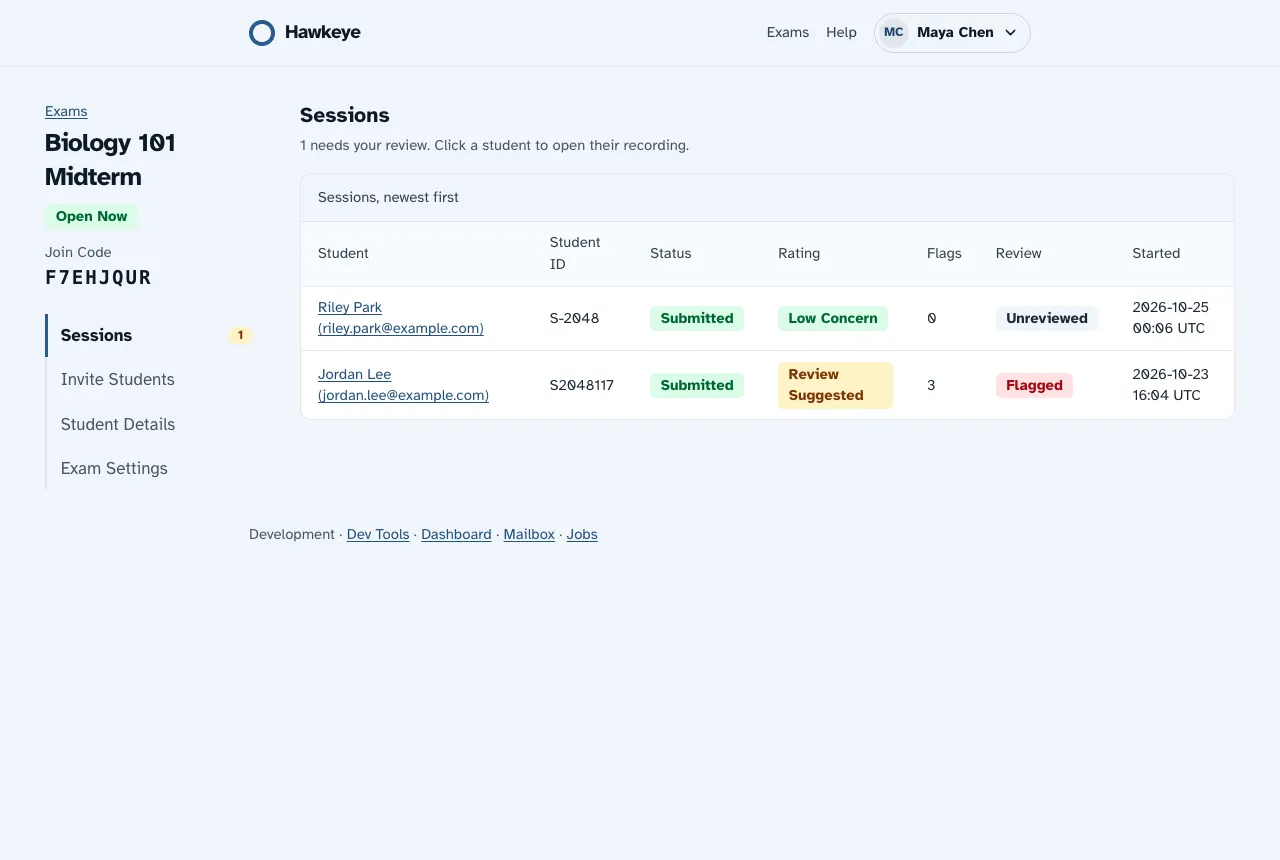
Select a student’s name to open the review page.
The rating
Hawkeye works out the rating from the flags:
- High Concern: one or more high flags, or three or more medium flags.
- Review Suggested: one or more medium flags, or five or more low flags.
- Low Concern: all other attempts.
A flag marks a moment to check. A flag alone is not proof of cheating.
The review page
The top bar shows where you are, your place in the review queue, for example “Student 1 of 3 to review”, Review Guide (this page) and Next Student. The queue holds the ended sessions of this exam that you have not reviewed yet. On a session that you reviewed, Hawkeye shows your decision and how many sessions are left, for example “Flagged · 1 left to review”.
Under it, the student’s card shows the face photo from the pre-check, the student’s name, the rating, the number of flags, the student ID, email address, duration and the details the student gave. It ends with the dates when Hawkeye deletes the photo and the recordings.
A strip stays at the bottom of the window while you scroll. It shows your place in the queue, Skip to Next, Mark Flagged and Mark Cleared.
Watch the recording
The recording appears when the attempt ends. The screen recording and the webcam recording show side by side. To watch one bigger, select Make Larger on it. To go back, select Side by Side. The two recordings stay in sync: play, pause or skip on one, and the other follows.
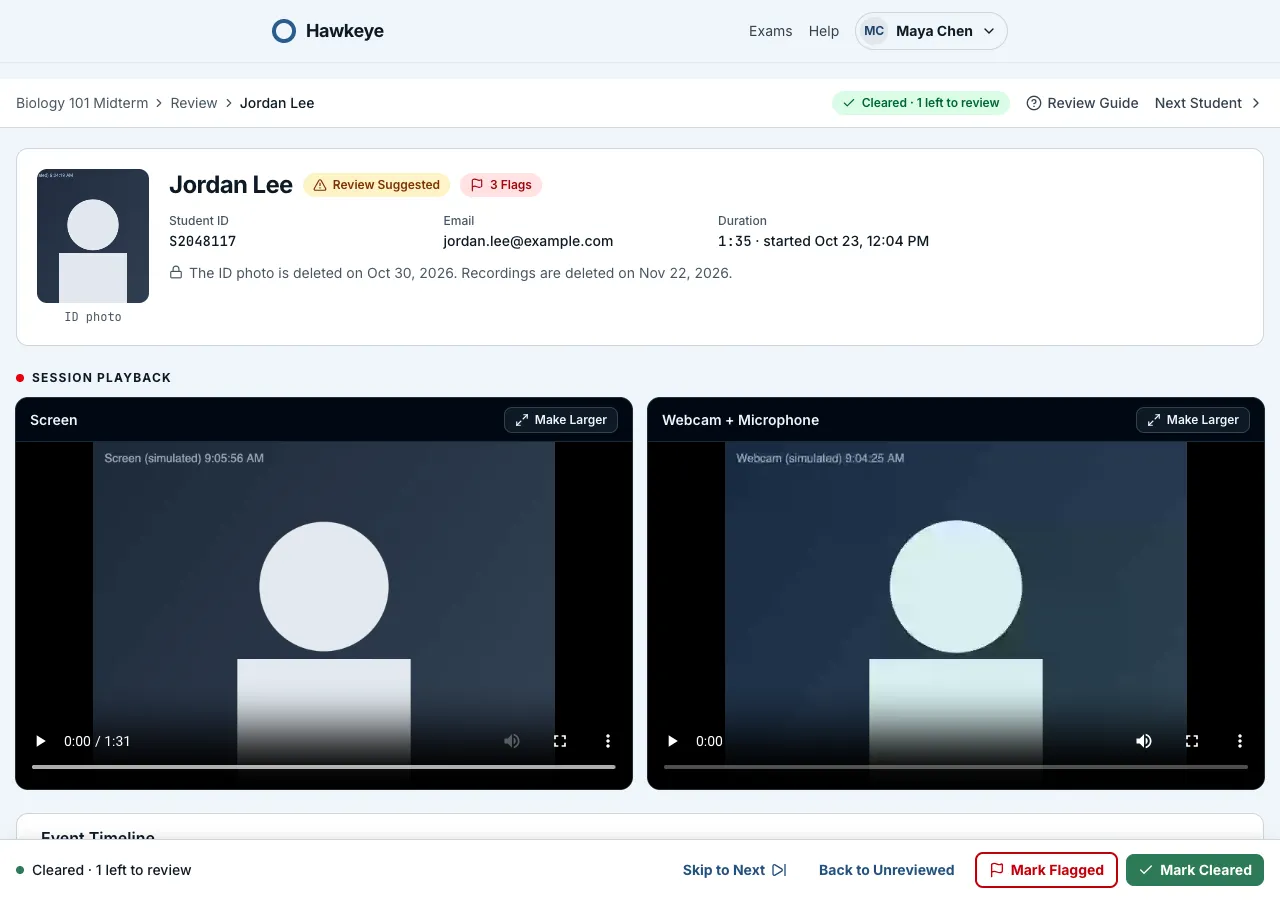
Under the recordings, in Event Timeline, each kind of flag has its own track with its count. Your notes have a Notes track. Each mark sits at the time of the flag or note. Select a mark to jump to it. Select an empty spot on a track to jump to that time.
Flags and Logged Observations below the tracks shows each flag and note as a card, in time order, with an icon for its kind. Its title gives the number of items, for example Flags and Logged Observations (5). Select Jump to on a card to jump the recordings there.
Kinds of flags
| Severity | Flags |
|---|---|
| High | No face, Multiple faces, Left the exam page |
| Medium | Tab switch, Left fullscreen, Paste, Head out of frame, IP address changed, Same network as another student, Device used by another student, Recording gap |
| Low | Window switch, Audio spike, Too far from camera |
Setup problems are flags for technical failures, not misconduct: Face checks unavailable, Camera unavailable and Screen sharing stopped. They show a Setup problem badge and do not change the rating. The student sees a message when one happens.
Hawkeye flags Paste only for exams that open in their own window. It cannot see a paste inside a quiz shown in Hawkeye, so check the screen recording for those.
Hawkeye adds the network and device flags after the attempt ends, when Network and device checks is on.
“Left the exam page” means the student closed or reloaded Hawkeye during the exam, after the browser asked them to confirm. The attempt ends there, as abandoned. For a Canvas quiz in its own window, the quiz can still be open after that moment: compare the quiz’s submission time with the flag.
When recordings are deleted
Hawkeye deletes the face photo and the screen, webcam and microphone recordings 30 days after the attempt ends. If an attempt never ended, the time counts from its start.
The review page shows the dates in the exam’s time zone, for example “Recordings are deleted on” a date under the recordings and “The face photo is deleted on” a date under the photo. After that date, the page shows “Recordings deleted on” and “Face photo deleted on” in place of the players and the photo. The flags, the notes and your decision stay, but you cannot watch the recordings.
Review each attempt within 30 days. The Privacy Policy lists what Hawkeye keeps and for how long.
Add notes
To add a note to a flag:
- In Flags and Logged Observations, select the flag. The recordings jump to the flag, and a note form opens under it.
- Type your note. The note gets the time of the flag.
- Select Save Note. To close the form without a note, select Cancel.
The note shows under its flag, with your initials.
To add a note at another moment:
- Play or jump to the moment.
- Select Add Note. The form shows the current time of the recording.
- Type your note and select Add Note.
Decide
In the strip at the bottom, select Mark Cleared or Mark Flagged. The session then leaves the review queue. To undo your choice, select Back to Unreviewed in the strip. You see this button only after you decide. Skip to Next opens the next session to review without deciding.
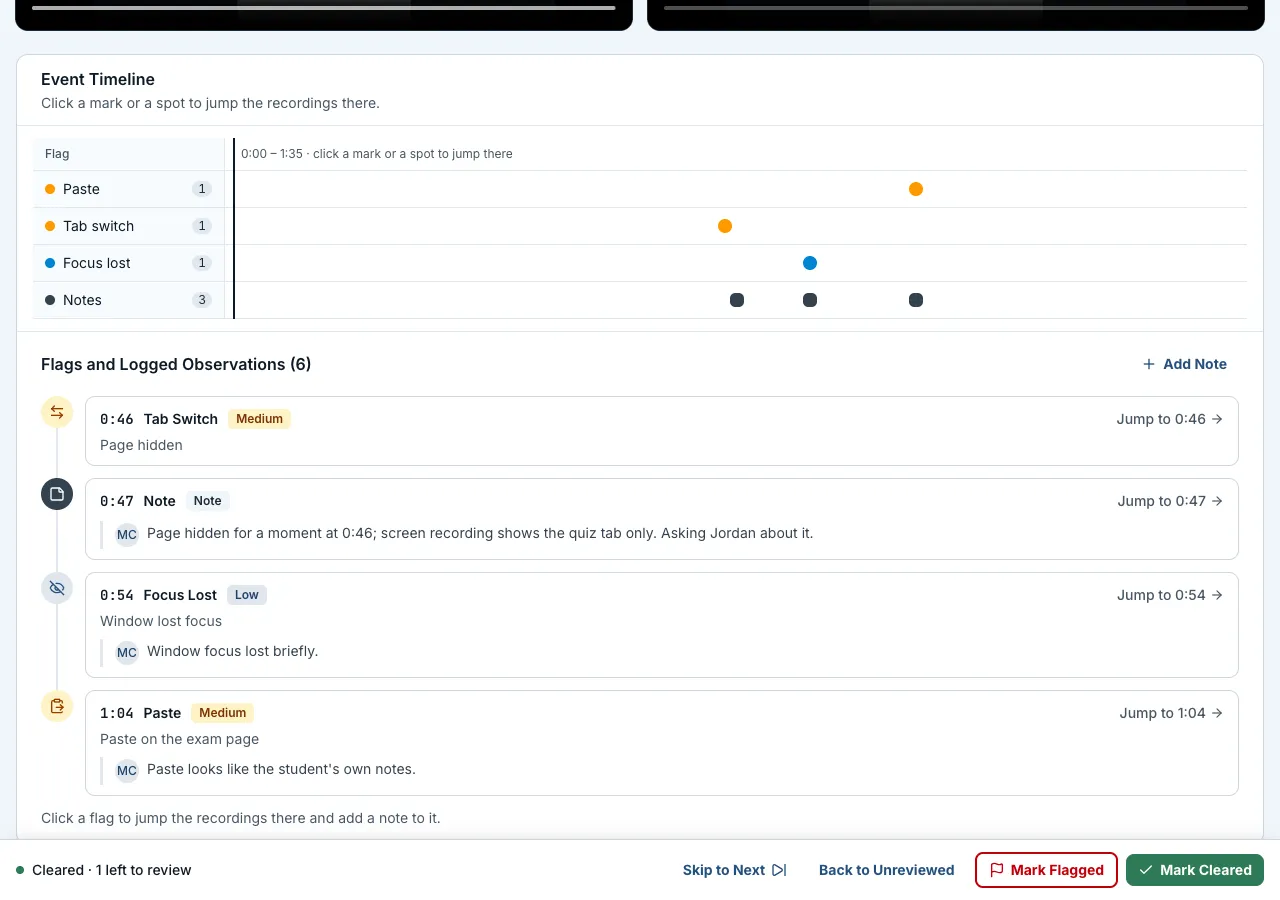
The Review column on the exam page shows your choice.
To see patterns across all attempts, such as which flags come up most or which students have repeated High concern attempts, read See reports.
Canvas quizzes with more than one attempt
For a Canvas quiz, each Canvas attempt has its own row, labelled Attempt 2 and so on. The review page links the student’s other attempts. Read Use Hawkeye with Canvas.