Invite students
Send invites by pasting email addresses or importing a CSV roster, now, when the exam opens or at a set time.
Students need the join code to enter an exam. You can give them the code yourself, or Hawkeye can email each student an invite. The invite email contains the join code, a link to the exam and the exam window.
Share the join code
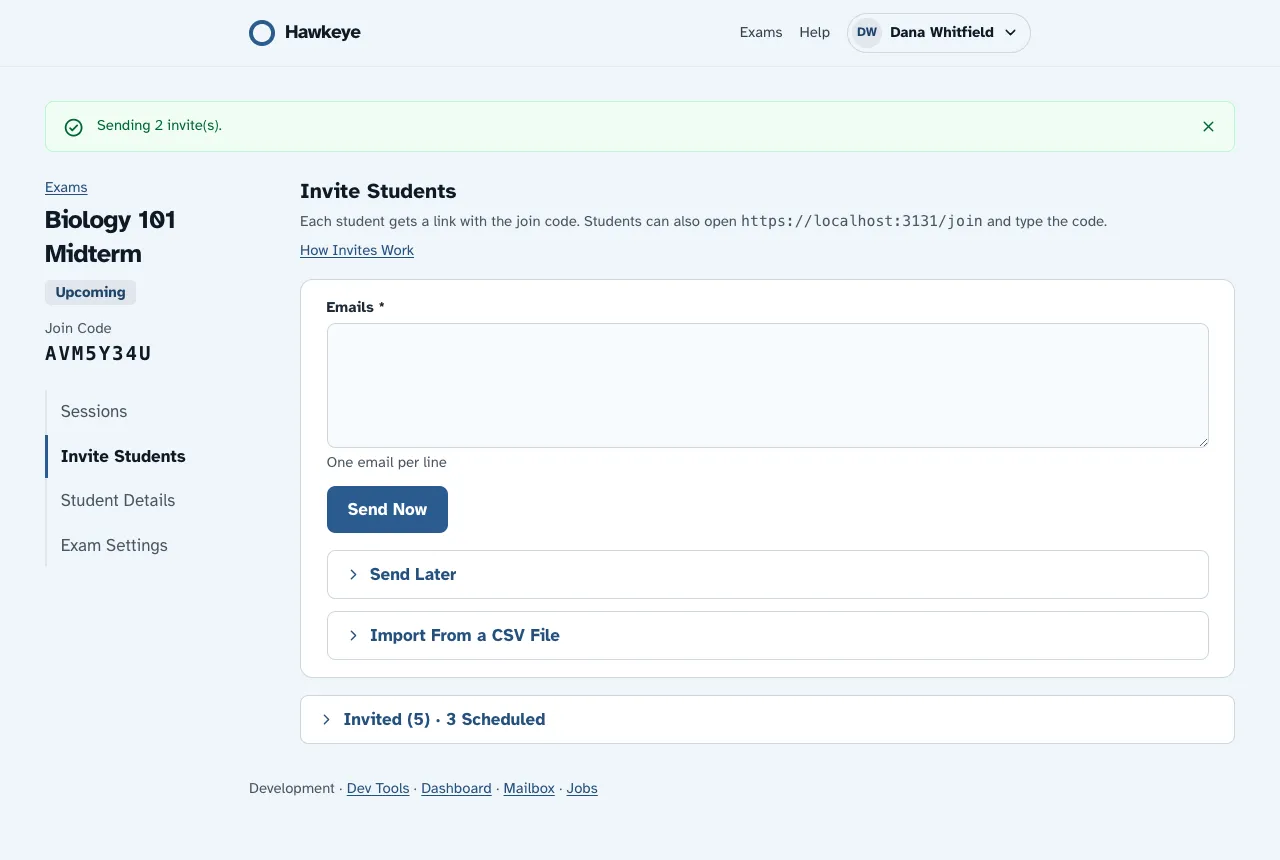
The exam page shows the Join Code at the top left. Students can open the join page, type the code and enter the exam. The Invite Students section shows the address of the join page.
Paste email addresses
Open the section
On the exam page, select Invite Students in the rail.
Add the addresses
Type or paste the addresses into Emails, one address on each line.
Send
Select Send Now. To send later, read Send the invites later.
Hawkeye skips addresses that already have an invite for this exam. The message at the top of the page tells you how many it skipped. After each invite action, Hawkeye returns you to Invite Students.
Send the invites later
- Type or paste the addresses into Emails.
- Open Send Later.
- Choose one:
- To send at a set time, type the Date and Time and select a Time Zone. The time must be in the future. Then select Schedule.
- To send at the open time, select Send When the Exam Opens. You see this button only when the exam has an open time in the future.
Import a CSV roster
Use a CSV file to invite a whole class with names.
- Make a CSV file. The first row is the header. It needs an
emailcolumn. Thefirst_nameandlast_namecolumns are optional. Hawkeye ignores other columns. - In Invite Students, open Import From a CSV File and choose the file under CSV File.
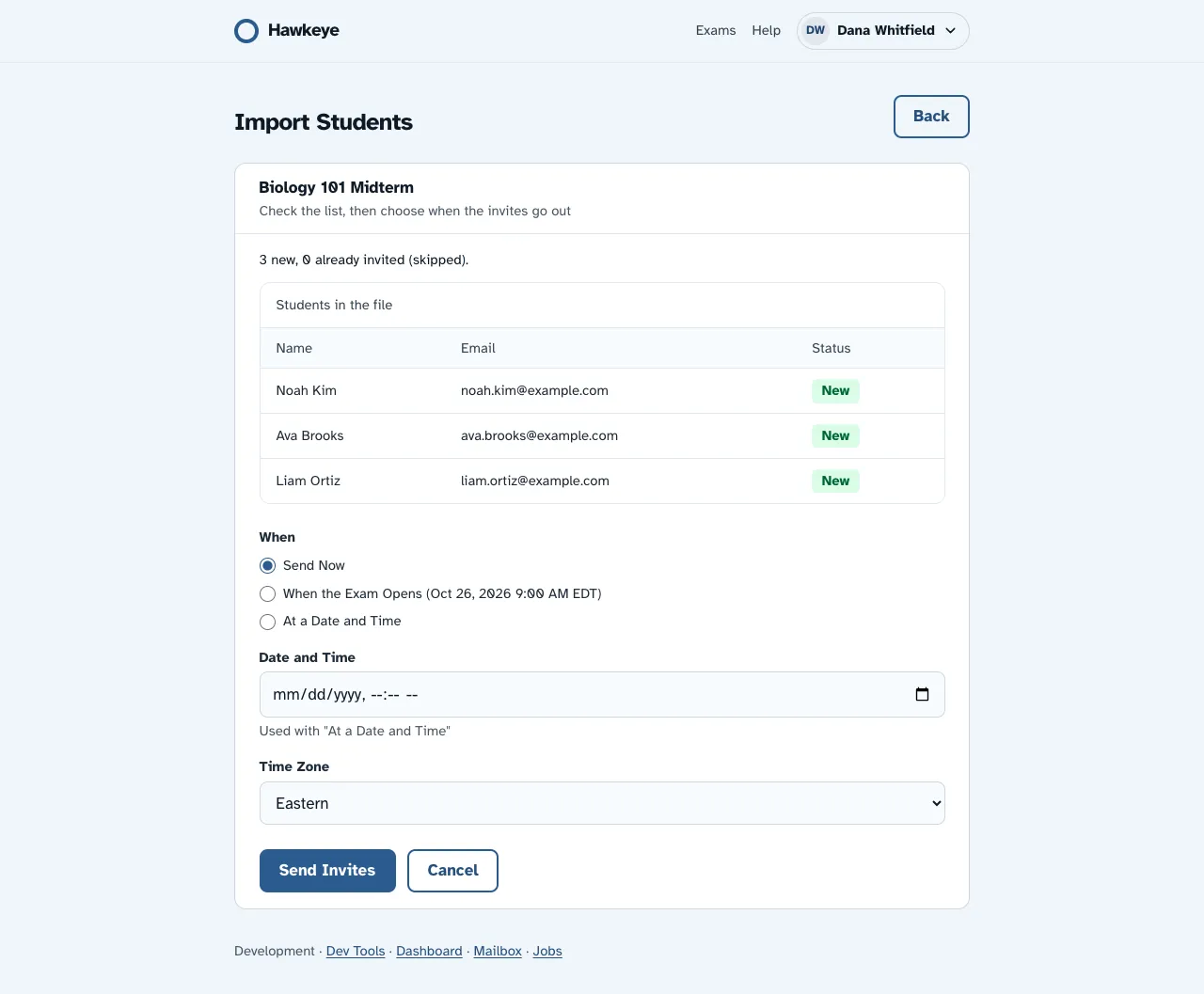
- Select Preview Import. The Import Students page opens.
- Check the preview. Each row shows the name, the email address and New or Already Invited. Hawkeye does not save or send anything yet.
- Under When, choose when to send. Read When the invites go out. Then select Send Invites.
A file can have up to 200 students. If one row has a missing or incorrect email address, Hawkeye refuses the whole file. The error message gives the line number of each bad row. Correct the file and try again.
The invite email greets each student by first name when the file gives one. When a student signs up from the invite link, Hawkeye fills in the name fields from the file. The student can correct them.
When the invites go out
On the Import Students page, the When choices are:
- Send Now: Hawkeye sends the invites at once.
- When the Exam Opens: Hawkeye sends the invites at the open time. You see this choice only when the exam has an open time in the future.
- At a Date and Time: type the Date and Time and select a Time Zone. The time must be in the future.
Sent and scheduled invites
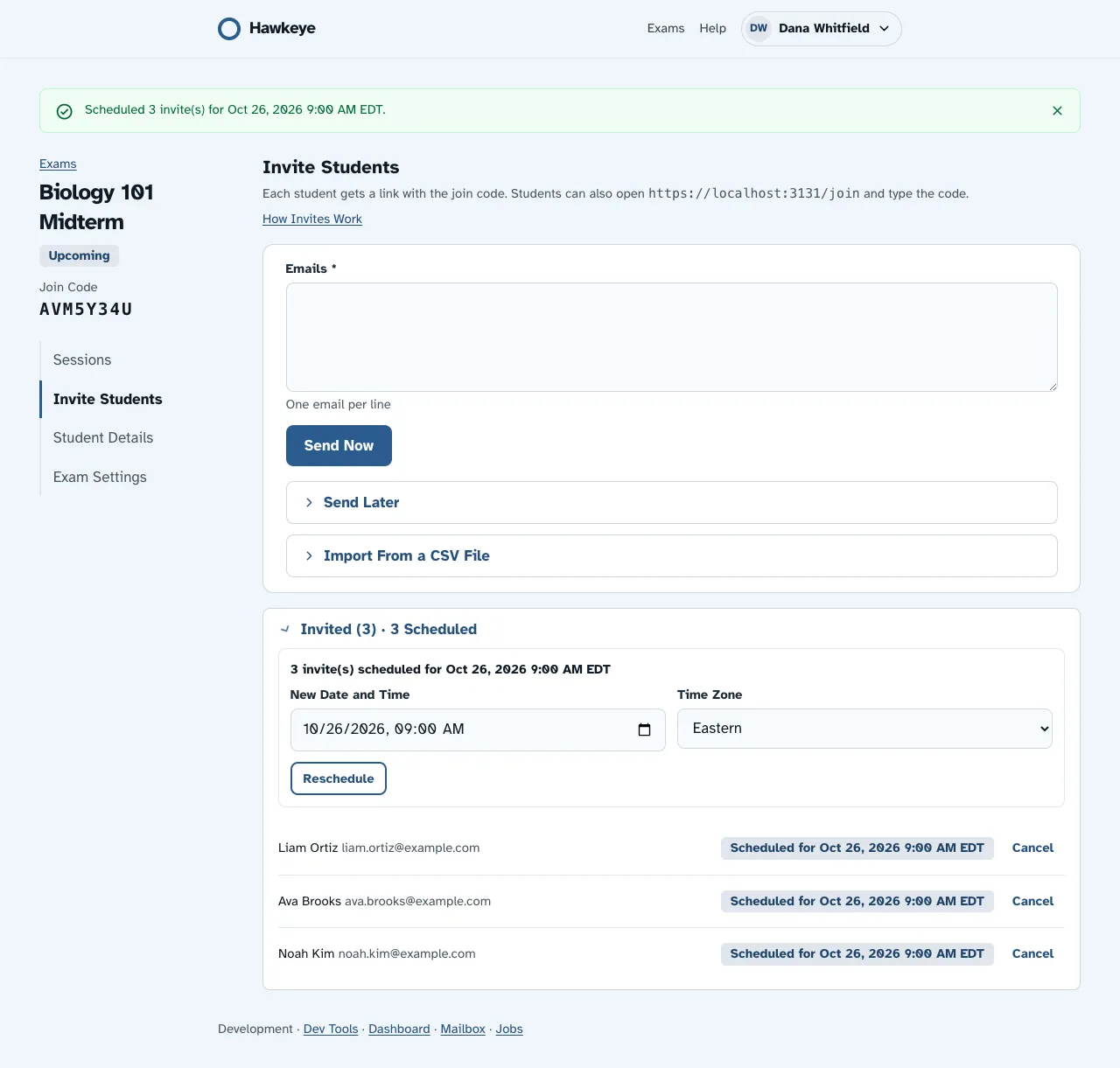
Your invites fold into one line below the form, for example Invited (3) · 3 Scheduled. Open it to see each invite. A sent invite shows Sent. A scheduled invite shows Scheduled for with its time.
- To stop one invite, select Cancel next to it. You can cancel until Hawkeye sends it.
- To move a whole batch, find the box that says how many invites are scheduled for that time. Type a New Date and Time, select a Time Zone and select Reschedule.
The “exam is open” email
If the exam has Email invited students when the exam opens on, students who got an invite before the open time get a second email at the open time. Read Create an exam.
Students who sign up with the invited email address also see the exam on their My Exams page. Read Find and join your exam.